Once the Language feature is successfully configured, all the content in your store will be automatically translated.
To set up this feature, please follow the steps below:
Step 1: Add Target Languages
Select the language(s) you want your store content to be translated into. Depending on your current plan, you can add up to 1 or 20 target languages.
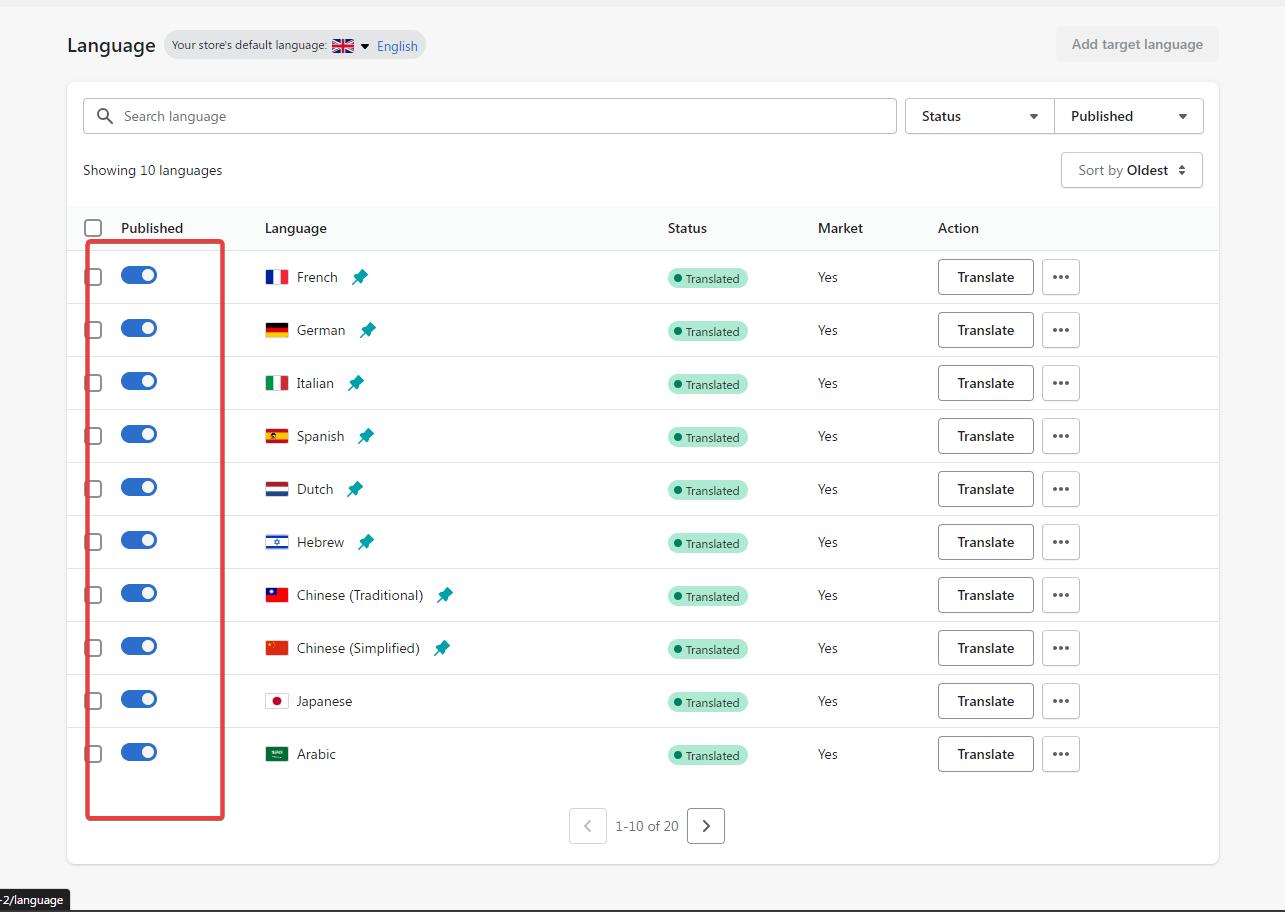
Step 2: Translate and Publish Languages
Translate and publish the target languages you want to make available on your store. You can also pin your preferred languages so they appear at the top of the language switcher list.
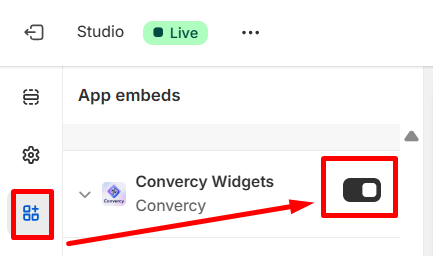
Step 3: Enable the App Embed in Theme Editor
Go to the Switcher section and click the link provided in the Convercy app interface, then save the settings.
Alternatively, you can open the Theme Editor directly and enable the Convercy App Embed there.
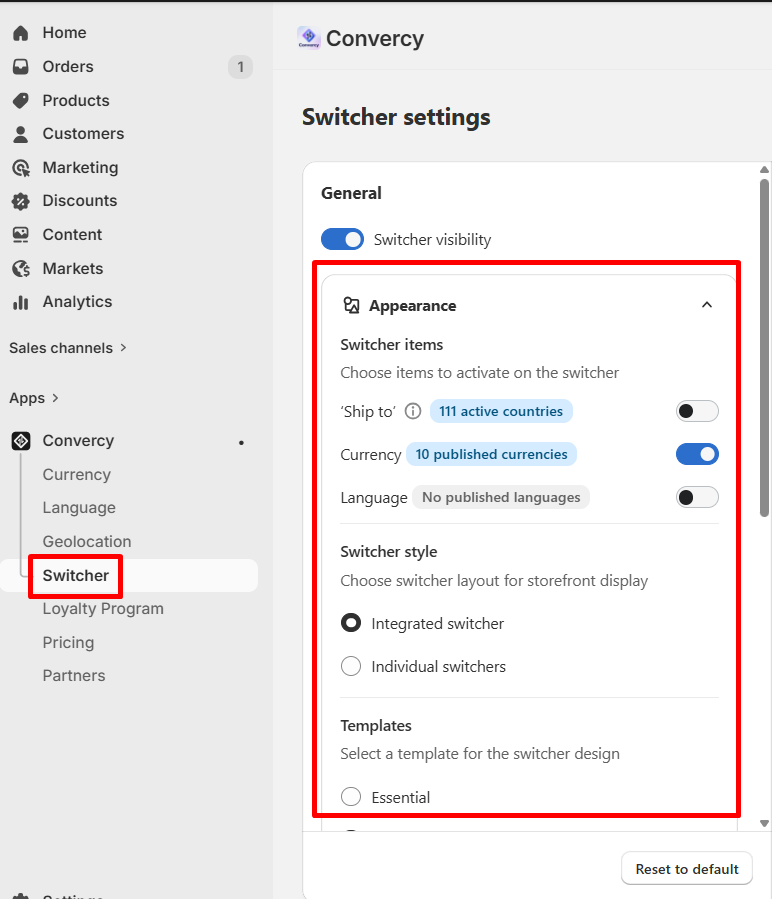
Step 4: Configure and Enable the Switcher
Display translated content on your storefront using either a floating or embedded switcher style. You can check the Preview screen to choose the style that best fits your store.
If you encounter any difficulties during the setup process, feel free to contact us at support@convercy.app
Our team is always ready to assist you and ensure a smooth experience.
Was this article helpful?
That’s Great!
Thank you for your feedback
Sorry! We couldn't be helpful
Thank you for your feedback
Feedback sent
We appreciate your effort and will try to fix the article